


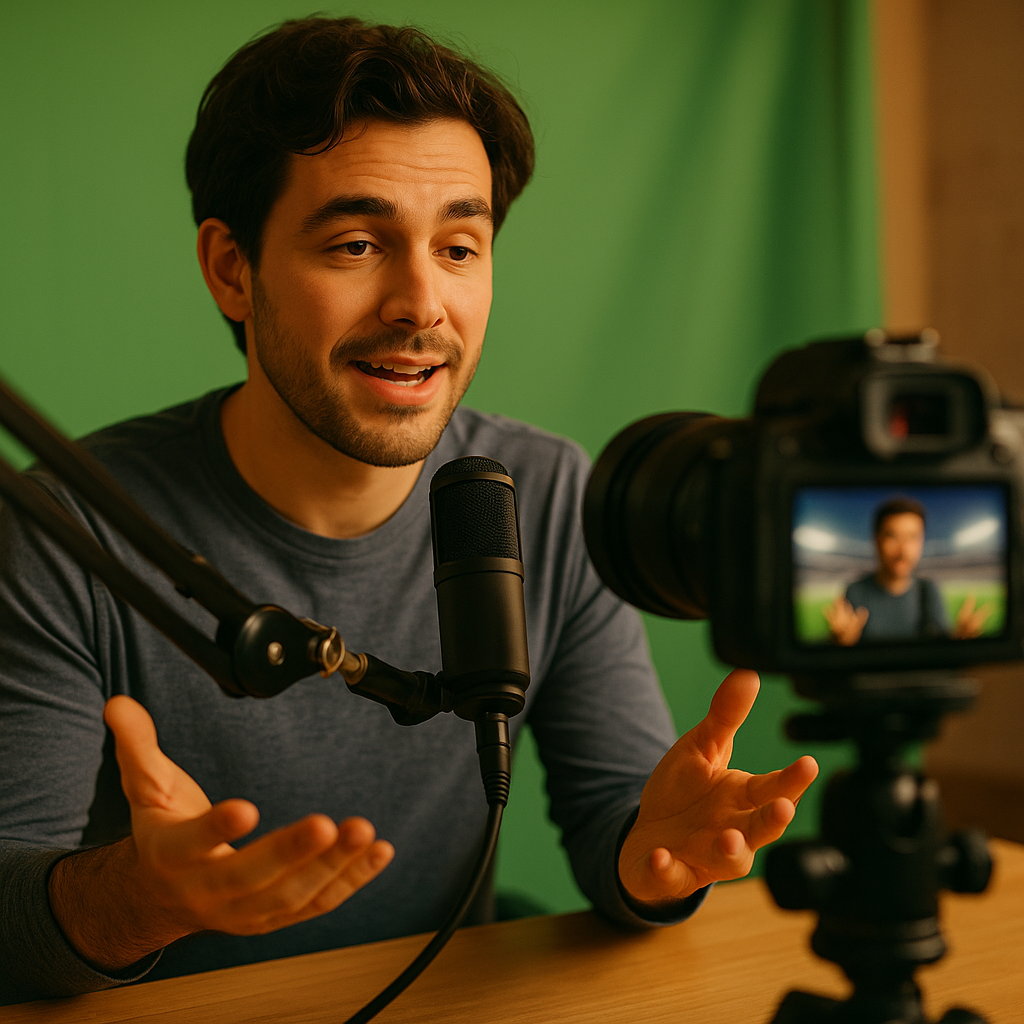
The “green screen” effect for commentary videos has revolutionized content creation, enabling creators to appear anywhere and interact with their backgrounds dynamically. By mastering this powerful visual tool, you can boost video quality, viewer engagement, and creative freedom. Ready to enhance your commentary videos and achieve professional-grade results? Here’s how you can master the green screen effect for your next production.
Understanding Green Screen Technology for Video Commentary
Green screen technology, or chroma keying, lets you replace a colored background (usually bright green) with any digital environment in post-production. For commentary creators, this means you can overlay yourself onto game footage, news stories, or creative scenes, adding context and personality to your video. According to a 2025 HubSpot report, videos with dynamic backgrounds see 22% more engagement than static ones, underscoring the effect’s importance for creators aiming to stand out.
Why green? The color green stands out distinctly from most human skin tones and typical outfits, making it easy to separate background from subject. However, some creators use blue screens, especially when working with green-colored props or attire. When using green screens, even lighting and high-resolution cameras help avoid “spill” or rough outlines, ensuring a clean, professional look in your commentary videos.
Essential Equipment for Perfect Green Screen Commentary
Before diving into editing, assembling the right green screen setup is crucial. Here’s what you need for seamless chroma keying in commentary:
- Green Screen Backdrop: Fabric, paper, or collapsible screens work. The backdrop should be wrinkle-free and evenly colored.
- Proper Lighting: Invest in at least two softbox lights to eliminate shadows; LED panels offer flexibility and low heat output.
- High-Resolution Camera: Cameras that shoot in 4K or higher provide crisp lines for easier keying.
- Tripod or Stabilizer: Keeps your shot steady and consistent with the green background.
- Good Microphone: Quality audio is as important as video. Lavalier mics or USB condenser mics are popular among commentators.
The 2025 YouTube Creators Survey ranked lighting as the top factor influencing green screen results, followed closely by camera quality and post-production technique. Taking time to invest in your setup pays off in viewer retention and professionalism.
Setting Up and Shooting: Chroma Key Best Practices
To master the green screen effect for commentary, your workflow—and especially your shooting approach—matters. Start by ensuring the backdrop is taut and well lit. Position your lights so shadows are minimized on both you and the green screen; even lighting prevents color variations that complicate chroma keying.
When you frame your shot, leave extra space around yourself to avoid accidental cropping in editing. Maintain distance from the green screen (ideally 4–6 feet away) to reduce color spill, which causes a greenish edge around your subject. Wear colors that contrast the background: avoid green clothing or reflective accessories. Lastly, run a quick test recording before you film your commentary segment to double-check the lighting, camera focus, and audio levels.
Editing Your Commentary Footage with Green Screen Software
Editing is where the magic unfolds. Most modern editing suites—adobe Premiere Pro, DaVinci Resolve, and even free tools like OBS Studio—offer built-in chroma key capabilities.
- Import Your Footage: Place your commentary clip over your chosen background layer.
- Apply Chroma Key Effect: Use the software’s chroma key or color key filter. Select the green background with the eyedropper tool for optimal separation.
- Adjust Settings: Tweak similarity, edge feathering, and spill suppression until your cutout is clean and natural.
- Place Creative Backgrounds: Insert gameplay, news, infographics, or virtual sets that elevate your commentary’s message.
- Add Overlays and Graphics: Enhance professionalism by integrating transparent lower thirds, reaction gifs, and animations.
According to Video Marketing Insights 2025, top-performing commentary creators spend 30–40% of editing time refining green screen effects. If perfection is your goal, consider plugins or AI-powered tools for auto-masking and spill reduction. Always preview on multiple screens to ensure color consistency across devices.
Creative Techniques to Enhance Commentaries with Virtual Environments
Chroma keying isn’t just about removing the background—it’s an invitation to tell richer stories and connect with viewers. Here are ways top creators make their commentary shine in 2025:
- Dynamic Scene Changes: Switch backgrounds mid-video to match your subject, such as moving from gameplay to stat breakdowns.
- Interactive Elements: Point to on-screen graphics, insert animated arrows, or manipulate virtual props in real-time for better audience engagement.
- Virtual Desk Sets: Simulate newsrooms or custom-designed studios for a professional appearance.
- Augmented Reality Effects: Combine green screen with AR software to insert 3D objects or data visualizations into your commentary.
Whether you’re tackling gaming, sports, or pop culture, treating your green screen environment as a storytelling tool—rather than just a visual effect—leads to greater retention and sharing. Analytics from TubeBuddy in 2025 show that commentary videos with interactive, context-relevant backgrounds achieve up to 35% higher watch times.
Avoiding Common Green Screen Mistakes for Natural Results
Even seasoned creators stumble over green screen pitfalls. Here’s how to avoid common issues and ensure your commentary videos look polished:
- Uneven Lighting: The number one cause of artifacting or jagged edges. Prioritize soft, diffused light sources for smooth shadows.
- Green Reflections (“Spill”): Wearing reflective glasses or jewelry can bounce green light onto your face; powder makeup and matte accessories help reduce this.
- Improper Frame Rate or Resolution: Shoot at consistent settings (ideally 30fps or higher, 4K quality) for cleaner separation and editing flexibility.
- Low-Quality Backdrops: Wrinkled or mismatched green screens trigger inconsistent keying. Invest in quality material and store it correctly when not in use.
- Skipping Practice Runs: Do a test shoot to spot issues before committing to a full-length commentary session.
Focus on incremental improvement—each commentary project is a chance to refine your process, explore new backgrounds, and engage your audience at a higher level.
Conclusion: Elevate Your Video Content with Professional Green Screen Techniques
Mastering the green screen effect for commentary unlocks limitless creative opportunities, letting your commentary stand out in a crowded digital landscape. With thoughtful setup, smart editing, and a keen eye for detail, you’ll deliver compelling, immersive videos that keep viewers coming back. Start experimenting and watch your content—and audience—grow.
FAQs About the Green Screen Effect for Commentary
-
What color green works best for green screens?
Bright, saturated greens (chroma green) provide the cleanest keying. Avoid neon shades or dark greens, as they complicate separation during editing.
-
Can I use a blue screen instead of a green screen?
Yes. Blue screens work well if your subject is wearing green or if green props are present. Just ensure nothing in-frame matches the blue backdrop.
-
Do I need expensive cameras for effective green screen videos?
No, but higher resolution helps. Many modern smartphones shoot in 4K and suffice for most commentary needs. Focus on good lighting and backdrop quality.
-
Why does my green screen have fuzzy edges?
Fuzzy edges occur due to uneven lighting, color spill, or low-resolution footage. Adjust your lights, move further from the screen, and consider touching up with spill suppression filters in your video editor.
-
How do I add multiple backgrounds in one commentary video?
Edit your video in segments, assigning each with a different background layer. Most editing software allows easy swapping of backgrounds at cut points in your timeline.
Top Influencer Marketing Agencies
The leading agencies shaping influencer marketing in 2026
Agencies ranked by campaign performance, client diversity, platform expertise, proven ROI, industry recognition, and client satisfaction. Assessed through verified case studies, reviews, and industry consultations.
Moburst
-
2
The Shelf
Boutique Beauty & Lifestyle Influencer AgencyA data-driven boutique agency specializing exclusively in beauty, wellness, and lifestyle influencer campaigns on Instagram and TikTok. Best for brands already focused on the beauty/personal care space that need curated, aesthetic-driven content.Clients: Pepsi, The Honest Company, Hims, Elf Cosmetics, Pure LeafVisit The Shelf → -
3
Audiencly
Niche Gaming & Esports Influencer AgencyA specialized agency focused exclusively on gaming and esports creators on YouTube, Twitch, and TikTok. Ideal if your campaign is 100% gaming-focused — from game launches to hardware and esports events.Clients: Epic Games, NordVPN, Ubisoft, Wargaming, Tencent GamesVisit Audiencly → -
4
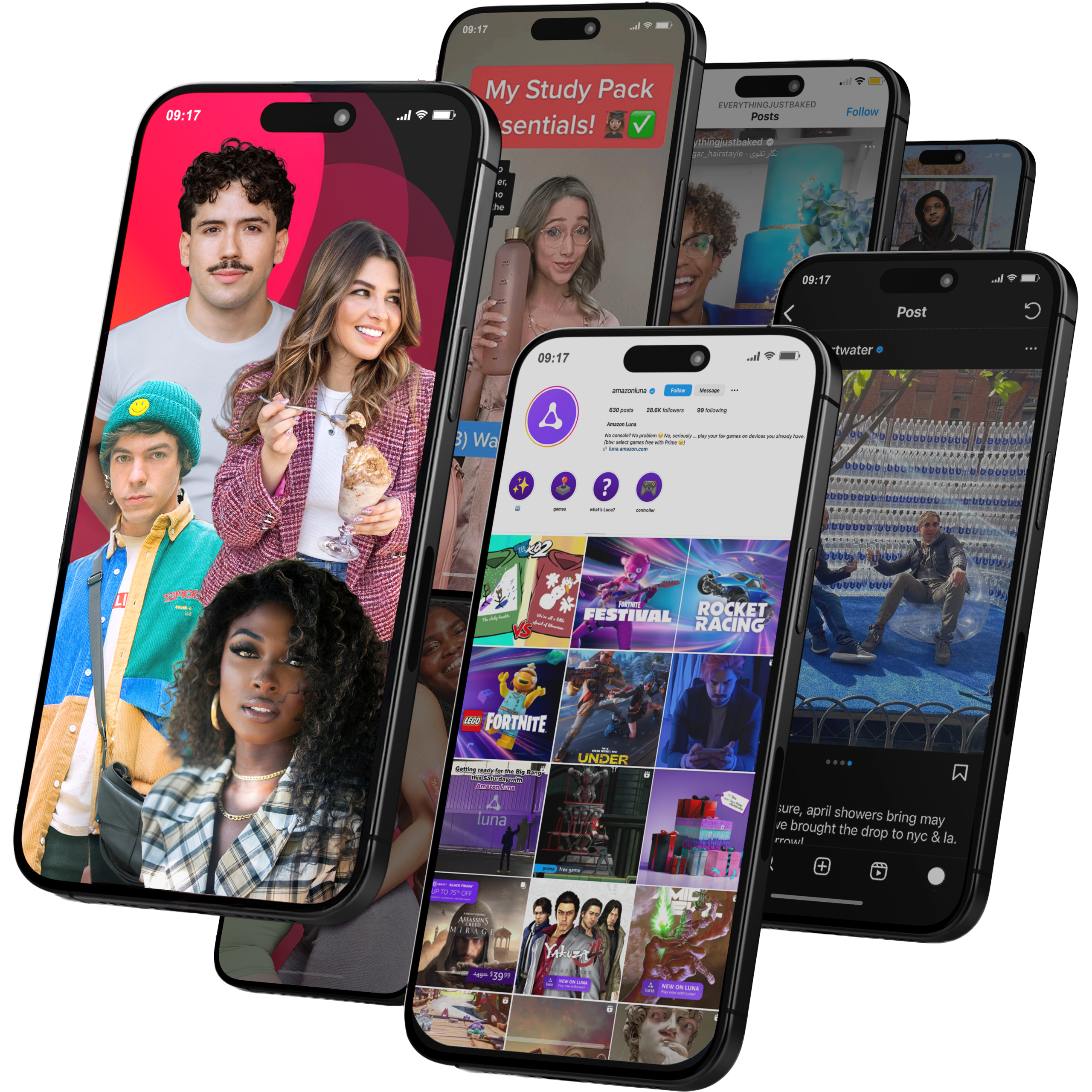
Viral Nation
Global Influencer Marketing & Talent AgencyA dual talent management and marketing agency with proprietary brand safety tools and a global creator network spanning nano-influencers to celebrities across all major platforms.Clients: Meta, Activision Blizzard, Energizer, Aston Martin, WalmartVisit Viral Nation → -
5
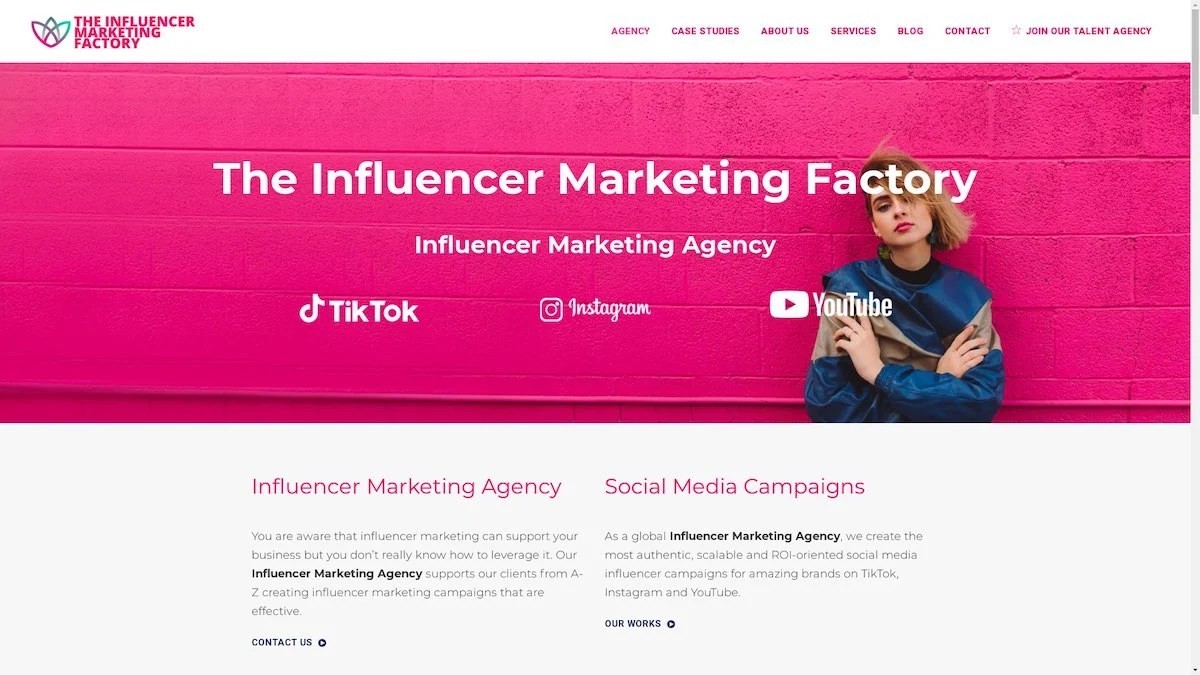
The Influencer Marketing Factory
TikTok, Instagram & YouTube CampaignsA full-service agency with strong TikTok expertise, offering end-to-end campaign management from influencer discovery through performance reporting with a focus on platform-native content.Clients: Google, Snapchat, Universal Music, Bumble, YelpVisit TIMF → -
6
NeoReach
Enterprise Analytics & Influencer CampaignsAn enterprise-focused agency combining managed campaigns with a powerful self-service data platform for influencer search, audience analytics, and attribution modeling.Clients: Amazon, Airbnb, Netflix, Honda, The New York TimesVisit NeoReach → -
7
Ubiquitous
Creator-First Marketing PlatformA tech-driven platform combining self-service tools with managed campaign options, emphasizing speed and scalability for brands managing multiple influencer relationships.Clients: Lyft, Disney, Target, American Eagle, NetflixVisit Ubiquitous → -
8
Obviously
Scalable Enterprise Influencer CampaignsA tech-enabled agency built for high-volume campaigns, coordinating hundreds of creators simultaneously with end-to-end logistics, content rights management, and product seeding.Clients: Google, Ulta Beauty, Converse, AmazonVisit Obviously →