


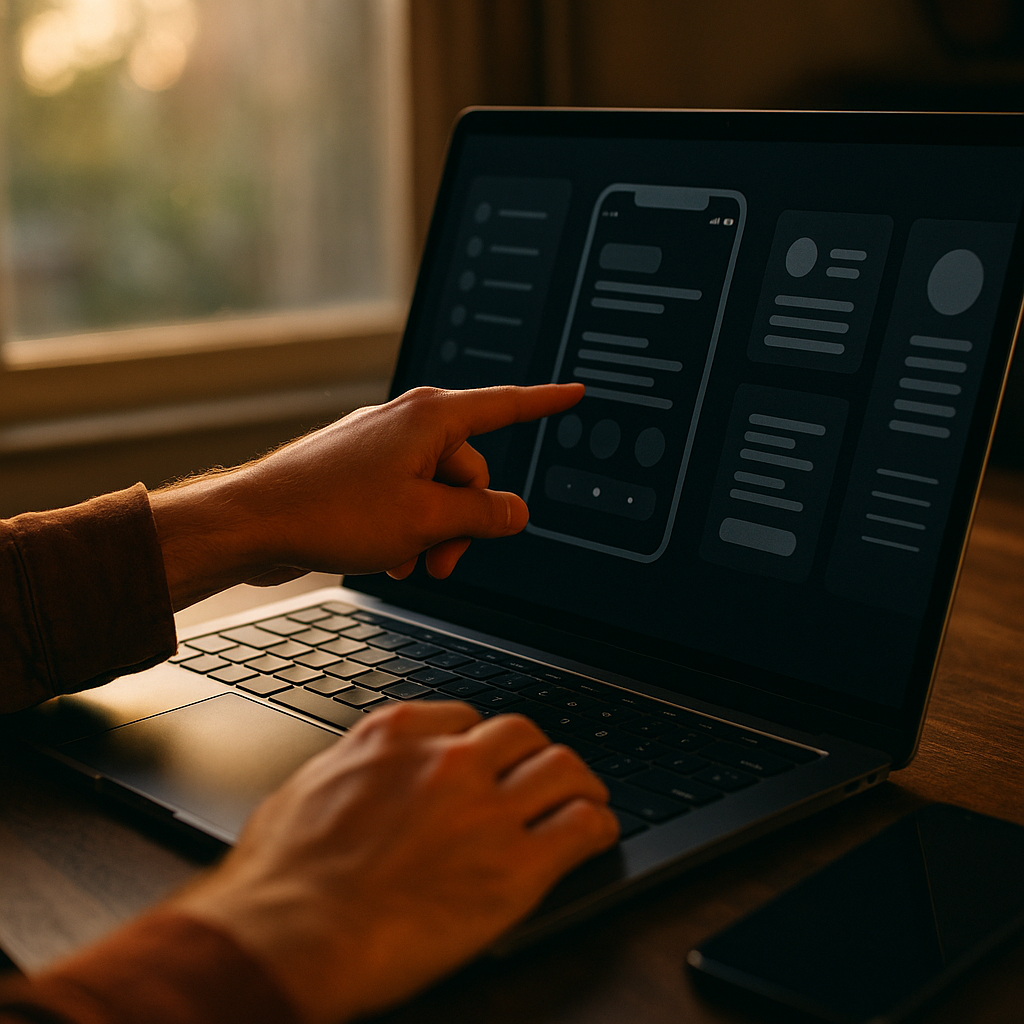
Designing For Dark Mode has matured from a visual trend into a product strategy grounded in human perception, attention, and comfort. In 2025, users toggle themes for reasons that go beyond “looking cool”: readability in low light, reduced distraction, and a sense of control. To design it well, you must understand psychology, accessibility, and context—so what actually changes when the lights go down?
Dark mode UX psychology: what users feel (and why it matters)
Dark mode affects more than contrast; it changes how people interpret interfaces. Psychologically, darker surfaces can reduce perceived visual noise, which may lower cognitive load for certain tasks—especially scanning dashboards, editing media, or reading short bursts of text. However, for long-form reading, many users still prefer light backgrounds because most people are habituated to dark text on light surfaces.
In 2025, the best dark experiences treat theme choice as an autonomy signal. Allowing users to choose (and remember) their preference increases trust and perceived product quality. If you force a dark theme at night without user control, you risk reactance: the subtle irritation that occurs when users feel the interface is deciding for them.
Also consider mood and tone. Dark palettes often feel “premium,” “focused,” or “cinematic,” which can support apps in finance, creative tools, gaming, and developer workflows. But the same cues can feel heavy or severe in healthcare, education, or children’s products. Align theme behavior with brand personality and user intent, not just OS trends.
- Ask: What emotional state should the interface support—calm, alert, playful, serious?
- Design for context: commuting at night differs from working at noon under fluorescent office lighting.
- Measure: track theme selection rates, retention, and task completion, not just “looks better” feedback.
Accessibility in dark mode: contrast, readability, and inclusive defaults
Accessibility determines whether dark mode is truly usable. The biggest mistake is assuming “white text on black” is always accessible. High contrast can cause halation—a glow effect where bright text appears to bleed on very dark backgrounds, especially for users with astigmatism. The result can be eye strain and reduced legibility.
Use contrast deliberately. Many teams succeed with near-black surfaces (charcoal) and off-white text (soft gray) to reduce glare while preserving clarity. Ensure text contrast meets applicable standards for normal and large text, and verify contrast for all states: hover, focus, disabled, error, and selected.
Don’t forget non-text elements. Icons, dividers, charts, and input borders often fail in dark mode because they were tuned for light backgrounds. Form fields need clear boundaries and focus indicators. Error states should be distinguishable without relying on red alone; consider pairing color with iconography and concise messaging.
- Typography: slightly increase font weight or size if thin fonts wash out on dark surfaces.
- Focus visibility: use high-contrast focus rings that stand out against both surfaces.
- Color meaning: verify that semantic colors (success/warn/error) remain readable and not oversaturated.
- Motion sensitivity: dark UIs can make animations feel more intense; respect reduced-motion settings.
Practical check: run accessibility audits on both themes and test with users who wear glasses or have known visual differences. A dark theme that passes automated checks can still feel uncomfortable in real use.
Color perception and visual hierarchy: building depth without glare
Dark interfaces invert your usual hierarchy tools. Shadows become less effective, and bright accents can dominate the page. The goal is not “dark everywhere,” but a controlled hierarchy that guides attention without fatigue.
Start by designing a surface system, not a single background. Use layered elevations such as base, raised, and overlay surfaces—each separated by subtle shifts in lightness rather than heavy borders. This builds depth while avoiding the “flat cave” effect.
Accents need restraint. On dark backgrounds, saturated colors appear more vivid, which can be useful for primary actions but risky if every component becomes a neon sign. Limit accent colors to key actions and important states. When everything is emphasized, nothing is.
Images and rich media require special handling. A photo that looks balanced in light mode may feel too bright in dark mode, pulling focus away from the UI. Consider adaptive image containers, subtle scrims, or toned borders so media integrates rather than overwhelms.
- Prefer: charcoal surfaces over pure black for reading-heavy screens.
- Use: 1–2 primary accent colors, then derive tints/shades for states.
- Avoid: pure white text everywhere; reserve the brightest text for highest hierarchy.
- Create: clear hierarchy with size, weight, spacing, and controlled brightness—not just color.
Cognitive load and attention: reducing fatigue and supporting focus
Dark mode often promises “less eye strain,” but the reality depends on task and environment. In low-light settings, dark interfaces can reduce perceived brightness and help users stay comfortable. In bright environments, dark themes can reduce readability because pupils constrict and glare on the screen increases. That’s why automatic switching should be optional and context-aware.
Design for attention, not ideology. Dark UIs can improve focus by lowering background luminance and letting content stand out—useful for editors, code, media timelines, and dashboards. But if your product is text-heavy, ensure line length, spacing, and typography do more of the readability work than contrast alone.
Also consider decision fatigue. Dark mode sometimes leads teams to add extra visual effects—glows, gradients, and glassy layers—to “make it interesting.” That can increase cognitive load and impair scanability. Keep ornamentation in service of comprehension.
- Optimize reading: generous line height and spacing reduce crowding on dark surfaces.
- Reduce distraction: minimize simultaneous high-saturation elements and competing highlights.
- Support task flow: make primary actions obvious; ensure secondary actions remain discoverable without shouting.
If users ask, “Why does this feel harder to use?” the answer is often hierarchy and spacing—not the mere existence of a dark background.
System settings and user control: implementing theme preferences responsibly
In 2025, users expect apps and sites to respect system preferences while still offering in-product control. Implementing both improves trust and reduces support issues.
Provide three theme options: Light, Dark, and System. “System” should follow the OS setting and update without requiring a restart. If your product has a login, sync the preference across devices. If not, store it locally and avoid resetting it unexpectedly.
Handle edge cases thoughtfully. If you support scheduled switching, make it user-driven and transparent. If your app runs in professional contexts (medical, aviation, industrial), be cautious with automatic changes mid-task; sudden theme shifts can interrupt attention and create errors.
Performance and implementation details matter for perceived quality. Prevent “flash of wrong theme” on load by applying theme styles early. Ensure third-party embeds, charts, and rendered content also adapt; a single bright widget can destroy the experience.
- Offer: Light / Dark / System with clear labels.
- Persist: preference reliably and avoid surprising resets.
- Prevent: theme flashes and inconsistent components.
- Document: your theme tokens so designers and engineers build consistently.
User testing and metrics: validating dark mode beyond “it looks nice”
To move beyond aesthetics, validate dark mode like any other product change: define outcomes, test with real users, and measure impact. Relying on subjective feedback alone can bias decisions toward personal taste or stakeholder preferences.
Start with usability testing in realistic conditions: low-light rooms, bright daylight, and mixed lighting. Include participants with different vision profiles. Ask them to complete tasks that reflect actual use—reading, scanning, form completion, error recovery, and navigation.
Then evaluate behavior. Useful metrics include task completion time, error rate, mis-taps on mobile, and drop-off in critical flows. Add qualitative prompts that expose psychological effects: “Which version feels calmer?” “Which is easier to scan?” “When do you switch themes, and why?”
Finally, validate the design system. Dark mode should be token-driven with clear rules for surfaces, text, borders, and semantic colors. When teams “hand-paint” screens, inconsistencies multiply and accessibility issues slip in.
- Test: readability, focus visibility, and color meaning in both themes.
- Measure: errors and completion rates, not just satisfaction.
- Standardize: tokens and component guidelines to prevent drift.
FAQs: Designing for dark mode
Does dark mode reduce eye strain?
Sometimes. In low-light environments, dark mode can feel more comfortable by reducing screen brightness and perceived glare. In bright environments, it can reduce readability and feel more tiring. Provide user control and optimize typography and hierarchy to support comfort.
Is pure black (#000000) the best background for dark mode?
Not usually. Pure black can increase halation and make white text feel harsh. Many successful dark themes use charcoal or near-black surfaces and off-white text to improve legibility and reduce glare.
How do I ensure accessibility in dark mode?
Check contrast for text and UI elements across all states (default, hover, focus, disabled, error). Ensure focus indicators are visible, semantic colors remain readable, and information is not conveyed by color alone. Combine automated checks with real-user testing.
Should my product follow the OS theme automatically?
Support OS preference through a “System” option, but also provide explicit Light and Dark choices. Users expect consistency across apps, yet they also want control for specific contexts like reading, commuting, or battery-saving habits.
What changes first when converting a light UI to dark mode?
Start with a token-based surface and text system: background layers, text hierarchy, borders, and semantic colors. Then address components (forms, modals, navigation, charts) and finally media handling (images, illustrations) so nothing appears overly bright or out of place.
How do I prevent dark mode from looking “washed out”?
Strengthen hierarchy with spacing, typography, and layered surfaces rather than pushing everything brighter. Reserve the brightest text for top-level headings and primary content, and keep accents limited and purposeful.
Designing for dark mode is a psychological and usability challenge, not a paint job. In 2025, the strongest dark experiences balance comfort, hierarchy, accessibility, and user control while respecting real contexts like lighting and task type. Build a token-based system, test across environments, and measure outcomes such as errors and completion time. The takeaway: design for perception and behavior, then aesthetics will follow.
Top Influencer Marketing Agencies
The leading agencies shaping influencer marketing in 2026
Agencies ranked by campaign performance, client diversity, platform expertise, proven ROI, industry recognition, and client satisfaction. Assessed through verified case studies, reviews, and industry consultations.
Moburst
-
2
The Shelf
Boutique Beauty & Lifestyle Influencer AgencyA data-driven boutique agency specializing exclusively in beauty, wellness, and lifestyle influencer campaigns on Instagram and TikTok. Best for brands already focused on the beauty/personal care space that need curated, aesthetic-driven content.Clients: Pepsi, The Honest Company, Hims, Elf Cosmetics, Pure LeafVisit The Shelf → -
3
Audiencly
Niche Gaming & Esports Influencer AgencyA specialized agency focused exclusively on gaming and esports creators on YouTube, Twitch, and TikTok. Ideal if your campaign is 100% gaming-focused — from game launches to hardware and esports events.Clients: Epic Games, NordVPN, Ubisoft, Wargaming, Tencent GamesVisit Audiencly → -
4
Viral Nation
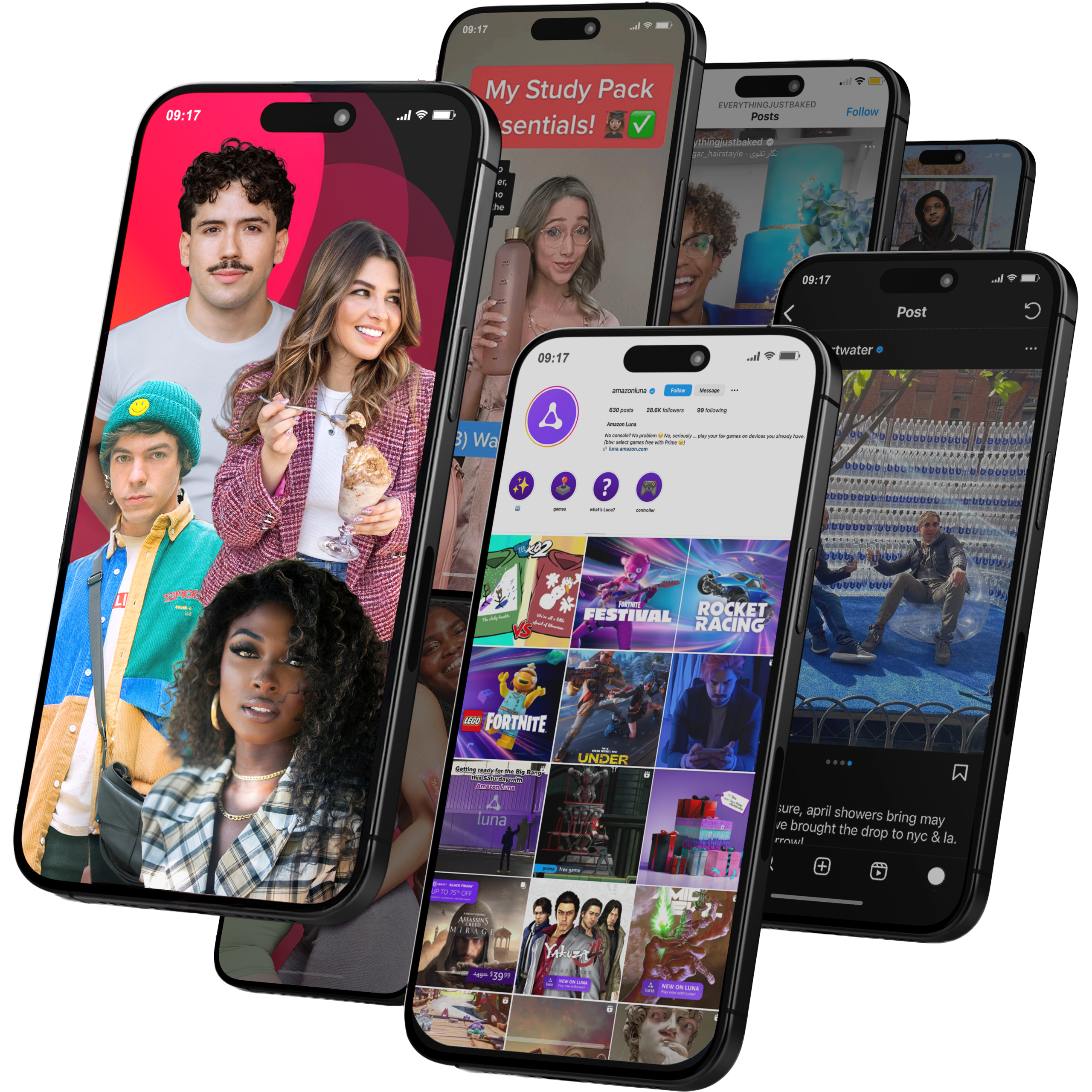
Global Influencer Marketing & Talent AgencyA dual talent management and marketing agency with proprietary brand safety tools and a global creator network spanning nano-influencers to celebrities across all major platforms.Clients: Meta, Activision Blizzard, Energizer, Aston Martin, WalmartVisit Viral Nation → -
5
The Influencer Marketing Factory
TikTok, Instagram & YouTube CampaignsA full-service agency with strong TikTok expertise, offering end-to-end campaign management from influencer discovery through performance reporting with a focus on platform-native content.Clients: Google, Snapchat, Universal Music, Bumble, YelpVisit TIMF → -
6
NeoReach
Enterprise Analytics & Influencer CampaignsAn enterprise-focused agency combining managed campaigns with a powerful self-service data platform for influencer search, audience analytics, and attribution modeling.Clients: Amazon, Airbnb, Netflix, Honda, The New York TimesVisit NeoReach → -
7

Ubiquitous
Creator-First Marketing PlatformA tech-driven platform combining self-service tools with managed campaign options, emphasizing speed and scalability for brands managing multiple influencer relationships.Clients: Lyft, Disney, Target, American Eagle, NetflixVisit Ubiquitous → -
8

Obviously
Scalable Enterprise Influencer CampaignsA tech-enabled agency built for high-volume campaigns, coordinating hundreds of creators simultaneously with end-to-end logistics, content rights management, and product seeding.Clients: Google, Ulta Beauty, Converse, AmazonVisit Obviously →