


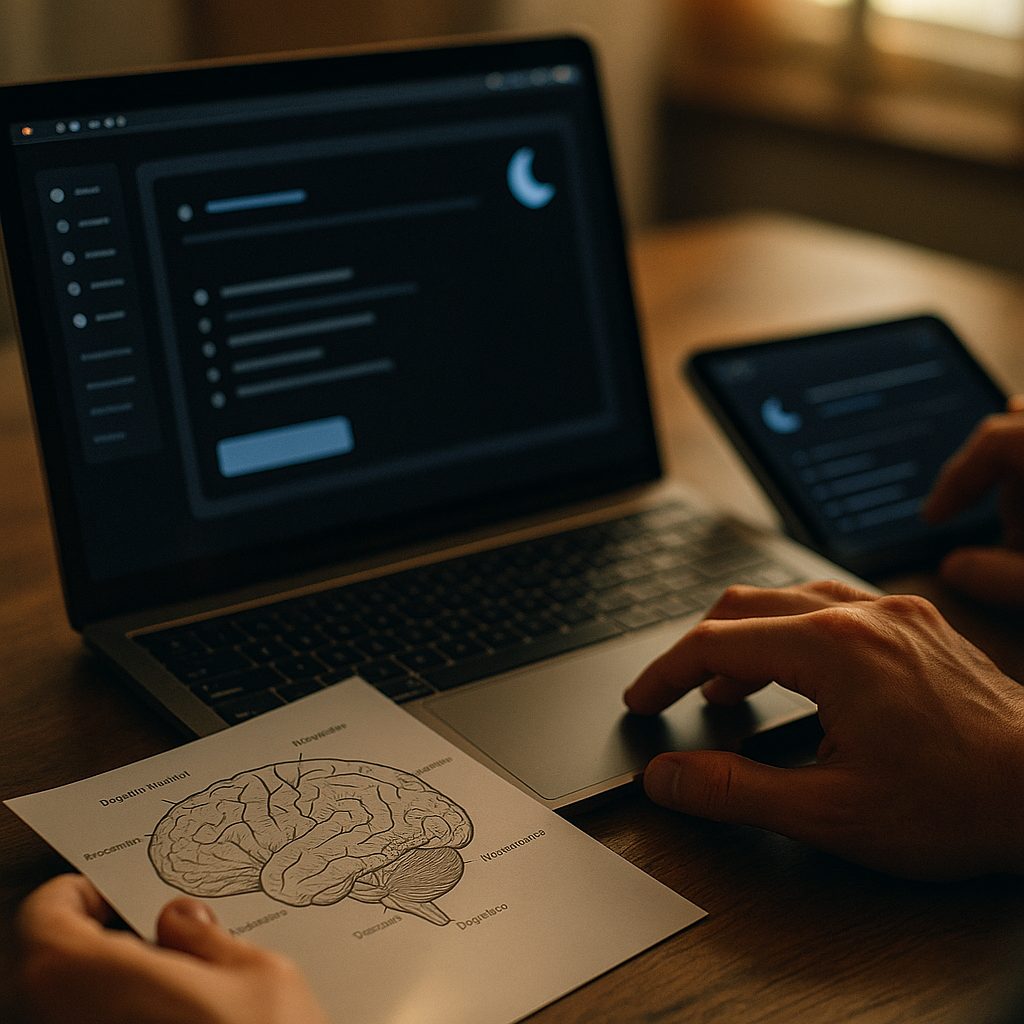
Designing For Dark Mode Beyond Aesthetics to Cognitive Psychology has become a practical requirement in 2025, not a stylistic trend. Users switch themes to reduce discomfort, save battery, and match low-light contexts, yet many dark UIs still feel muddy, fatiguing, or hard to scan. When you design with perception, attention, and memory in mind, dark mode becomes measurably clearer, faster, and more inclusive—so what changes first?
Dark mode UI design principles
Dark mode succeeds when it protects readability and supports fast visual parsing. That means you design for luminance and contrast relationships, not for “cool” color palettes. A high-performing dark interface typically uses near-black surfaces (not pure black), controlled contrast for text, and deliberate emphasis for interactive elements. This approach aligns with how the visual system adapts to low-light environments: it prioritizes edge detection and contrast while becoming more sensitive to glare and halos.
Start with surfaces, not accents. Build a clear elevation and grouping system using layered dark grays rather than one flat black. Use subtle differences in luminance (for example, a base surface, a raised surface, and a hover/active surface) to communicate hierarchy without relying on borders everywhere. If your layout only works when you add many strokes, it usually means your surface hierarchy is not doing enough.
Use contrast strategically. “Maximum contrast everywhere” is not the goal. Very bright text on a very dark background can cause blooming (a perceived glow) and increase visual fatigue, especially for users with astigmatism. Aim for high contrast where comprehension depends on it (body text, essential controls), and moderate contrast for de-emphasized metadata (timestamps, secondary labels). Treat contrast as a ranking system.
Design for states. In dark mode, disabled elements and low-priority actions can become indistinguishable. Define a state model up front (default, hover, pressed, focus, disabled, selected, error, success) and test each against the same surfaces. Make focus states particularly robust because keyboard navigation often becomes harder to track on dark backgrounds.
Answering the common follow-up: should you use pure black (#000)? Usually no for content-heavy UIs. Near-black reduces glare and makes shadows, elevation, and borders easier to express. Pure black can work for media apps or OLED-first experiences, but it still requires careful text and highlight tuning to avoid harshness.
Cognitive psychology in UI design
Dark mode is a perception problem before it’s a visual style problem. Cognitive psychology helps you predict where users slow down, miss information, or misinterpret hierarchy. In low-light contexts, users often scan more and read less, which raises the importance of strong information structure and consistent cues.
Attention and salience. On dark surfaces, saturated colors and bright elements pull attention more aggressively than they do on light surfaces. If every component is “attention-grabbing,” users experience attentional fragmentation: they keep re-orienting instead of progressing. The fix is to create a calm baseline and reserve high-salience treatments (brightness, saturation, motion) for truly critical actions and feedback.
Gestalt grouping. In dark mode, weak boundaries can make sections merge. Reinforce grouping through proximity, alignment, and consistent surface steps. Use spacing and clear headings to reduce cognitive load. When users can chunk content quickly, working memory stays available for comprehension rather than navigation.
Memory and predictability. Users build mental models based on repeated patterns. If your dark theme changes spacing, iconography, or layout compared to light mode, you force relearning. Keep structure consistent across themes and shift only what the theme needs: surfaces, text colors, and a limited set of accent adjustments.
Reading behavior and fatigue. Longer reading in dark mode can be challenging for some users due to halation and reduced perceived sharpness. If your product involves long-form reading, consider offering a “dim” theme (dark gray background, slightly off-white text) and allow fine-grained controls (font size, line height) that materially reduce effort.
Answering the follow-up: is dark mode always better for concentration? Not universally. Cognitive comfort depends on ambient light, task type, and user vision. Provide options and make switching fast; users are good at choosing what fits their moment when you give them safe defaults.
Visual ergonomics and eye strain reduction
Designing for comfort means managing luminance transitions, minimizing glare triggers, and ensuring legibility under real device conditions. Many “eye strain” complaints come from sharp contrast edges, overly bright text, and small typography that amplifies blur or halo effects.
Prefer “soft white” text. Instead of pure white (#FFF), use slightly dimmed text for body copy. This reduces perceived glare and improves sustained reading. Keep headings brighter than body text, but avoid turning every title into a spotlight.
Control line length and spacing. Dark UIs often appear denser because bright elements feel closer. Maintain comfortable line length and add a bit more line height than you might in light mode to help letterforms separate cleanly. This also supports users with dyslexia or low vision who benefit from extra spacing.
Be careful with thin fonts. Thin weights can shimmer on dark backgrounds, especially on lower-quality displays. Choose typefaces and weights that maintain stroke integrity. If your brand font is thin, set body copy in a sturdier system font or a heavier weight for dark mode.
Reduce hard edges and halos. Avoid bright text on pure black and avoid glowing shadows behind text. If you need emphasis, increase weight, adjust contrast modestly, or use an accent underline. Reserve glow effects for rare, intentional moments because they degrade readability when overused.
Support the environment. Many users enable dark mode at night. Consider an optional “night shift” palette with warmer neutrals to reduce the perception of harshness. Also ensure that system-level settings (like reduced motion and increased contrast) map cleanly to your theme.
Answering the follow-up: does dark mode reduce blue light? Not reliably. It often reduces overall screen luminance, which can feel more comfortable, but blue light depends on the display and OS settings. Don’t promise health outcomes; focus on measurable usability and comfort improvements.
Accessibility in dark mode
Accessibility is where dark mode often fails, because designers assume contrast alone solves legibility. In practice, accessibility in dark mode requires attention to color perception, focus visibility, motion sensitivity, and the needs of users with low vision, astigmatism, or color-vision differences.
Meet contrast requirements without creating glare. Ensure text and essential controls meet WCAG contrast targets, but tune your palette so contrast does not spike everywhere. Use different contrast levels for different semantic roles: primary text, secondary text, disabled text, borders, dividers. This keeps the interface readable while still calm.
Never rely on color alone. Error and success states must have icons, text, and clear messaging, not just red/green accents. In dark mode, red-on-black can look muddy, and green can vibrate. Pair color with shape and language.
Design a strong focus indicator. Focus rings often disappear on dark surfaces. Use a clearly visible outline with enough thickness and a color that stands out from both the component and the background. Also ensure focus is not clipped by overflow hidden in component containers.
Handle translucency carefully. Overlays, modals, and frosted-glass effects can reduce contrast unpredictably. If you use blur or translucency, test against varied content behind it (images, charts, bright cards) to ensure text remains readable.
Icons and illustrations need retuning. Icons designed for light mode may lose detail in dark mode. Increase stroke weight slightly, simplify shapes, and ensure that icon color is not too close to the background. For illustrations, reduce large high-saturation areas that can dominate the visual field.
Answering the follow-up: should you offer separate accessibility themes? Sometimes. At minimum, support OS-level increased contrast and allow a “high contrast dark” option if your audience includes professionals who spend hours in the UI (developers, analysts, operators). This is a product decision grounded in user research, not preference debates.
Color contrast and readability testing
Dark mode quality is measurable. Testing should combine automated checks (for coverage) with human evaluation (for perception). Many teams stop at contrast ratios and miss issues like glare, visual noise, and hierarchy confusion.
Build a semantic color system. Define tokens by meaning rather than by hex values: background, surface, elevated surface, border, primary text, secondary text, disabled text, primary action, danger, success, warning. Then provide theme mappings for dark mode. This improves consistency and reduces one-off “fixes” that break later.
Test with real content. Placeholder copy and perfect images hide problems. Use long names, dense tables, error messages, empty states, and charts. Dark mode often fails in data visualization: gridlines vanish, axis labels blur, and highlights overpower everything. Establish chart-specific tokens for grid, labels, series colors, and hover states.
Evaluate hierarchy with squint tests. A fast qualitative method: blur your eyes or zoom out until text becomes blocks. You should still see clear structure: what’s primary, what’s secondary, what’s interactive. If everything looks equally bright, you have an emphasis problem.
Validate across devices and brightness levels. Dark mode issues can appear only at low brightness, on older LCDs, or with certain subpixel rendering. Check at minimum: a high-end OLED phone, a mid-range laptop, and an external monitor. Also test in bright daylight, not only in dim rooms, because many users keep dark mode on all day.
Instrument and iterate. If you have analytics, track theme usage, task completion, and error rates by theme. Pair that with user feedback prompts that ask about readability and comfort in-context, not in abstract surveys. Your goal is to connect design adjustments to reduced friction.
Answering the follow-up: how do you know if your dark mode is “too dark”? Users will increase brightness, abandon the theme, or misclick low-contrast controls. In testing, watch for longer time-to-find, increased zooming, and frequent hover probing. Those behaviors indicate insufficient differentiation between surfaces and states.
Product trust and EEAT for UI decisions
In 2025, users expect theme choices to be safe, consistent, and respectful of their preferences. Applying EEAT principles to dark mode means you document decisions, cite standards, and prove reliability through testing and support.
Experience: Base design choices on observed user behavior. For example, if users work in low light, prioritize comfort and reduce glare; if your app is used outdoors, ensure dark mode remains readable in bright conditions. Capture these contexts in design requirements so dark mode is not treated as a cosmetic skin.
Expertise: Use established accessibility guidance (WCAG contrast targets, keyboard focus requirements) and typography best practices. When trade-offs appear—like higher contrast versus glare—make them explicit and provide options (such as a “dim” theme and a “high contrast dark” theme) rather than forcing one compromise on everyone.
Authoritativeness: Implement a design system with clear tokens, component specs, and testing criteria. When dark mode is systematized, it becomes dependable across teams and releases. This is also where brand consistency is protected: you can keep signature accents without sacrificing usability.
Trust: Avoid medical claims about eye health or sleep improvements unless you have rigorous evidence for your specific product. Instead, communicate what you can guarantee: readability, accessible contrast, predictable states, and respect for user settings. Trust grows when the UI behaves consistently and does not surprise users in critical flows like payments, security prompts, or error handling.
FAQs
What is the biggest mistake teams make in dark mode design?
They treat dark mode as a palette swap. Without revisiting hierarchy, states, typography, and chart colors, the UI becomes low-contrast in the wrong places and overly bright in others.
Should dark mode use pure black to save battery?
Pure black can reduce power on some OLED screens, but it can also increase perceived glare and reduce readability. A near-black foundation often performs better for content-heavy interfaces. If battery savings are a priority, test both and let users choose.
How do I pick the right text color for dark backgrounds?
Use off-white for body text, brighter values for headings, and clearly lower contrast for secondary metadata. Then validate with contrast checks and human readability testing on multiple devices and brightness levels.
Do I need separate design tokens for dark mode?
Yes. You should define semantic tokens (role-based) and map them per theme. This prevents inconsistent one-off colors and makes it easier to maintain accessibility as the product grows.
How can I make charts readable in dark mode?
Define chart-specific tokens for gridlines, labels, series colors, and hover states. Reduce visual noise, ensure labels meet contrast targets, and avoid overly saturated series colors that dominate the interface.
Is dark mode better for accessibility?
It can be, but it is not automatically more accessible. Some users experience halation or blurred text. The most inclusive approach offers a well-tested dark mode, a light mode, and potentially a dim or high-contrast variant aligned to user needs.
Dark mode works best when you design for perception and decision-making, not just appearance. Build a layered surface system, tune contrast as a hierarchy tool, and protect readability with typography choices that reduce glare. Validate with accessibility checks and real-device testing, then codify results in a token-based system. The takeaway: treat dark mode as a cognitive UX feature, and it will earn daily use.