



Designing Content for Foldable and Multi Surface Digital Interfaces is no longer a niche skill in 2025. As foldables, dual-screen devices, and multi-display setups spread across phones, tablets, laptops, cars, and kiosks, content must adapt without losing clarity, brand voice, or usability. The best experiences feel stable through every posture, hinge angle, and screen split. What changes when one interface becomes many?
Foldable UX design fundamentals
Foldables and multi-surface devices challenge the old assumption that a screen is a single, stable rectangle. In practice, users move between shapes, sizes, and interaction modes in seconds: closed to open, portrait to landscape, single-pane to dual-pane, touch to keyboard, or even handheld to propped-up “tent” posture. Strong foldable UX design starts with content rules that remain true across these transitions.
Design for continuity, not pages. Think in terms of user goals and content blocks that can reflow, expand, or collapse. When the device unfolds, users expect more context, not a different app. Keep navigation placement predictable, preserve the reading position, and avoid reloading screens that break trust.
Use progressive disclosure. On a smaller or folded state, show the essentials: headline, key actions, and the next best step. On expanded states, reveal supporting information such as comparisons, secondary controls, explanations, and richer media. This approach reduces clutter while rewarding expansion.
Respect the hinge and seams. Many foldables have a crease or hinge area that can distort content. Do not place critical text, form fields, or key controls directly across that zone. Treat the seam like a “no-fly strip” for important information.
Plan for posture-driven intent. In handheld mode, users tend to scan and act quickly; in tabletop or tent mode, they may watch, read long-form, or collaborate. Map primary actions to each posture: quick capture and checkouts for handheld, deeper review and editing for tabletop.
Follow-up you’re likely asking: Should you design separate experiences for each state? Usually no. Design one experience with adaptive content rules so the UI gracefully changes without changing the user’s mental model.
Adaptive layout for multi-screen experiences
Multi-surface devices create more than responsive breakpoints; they create different multi-screen experiences that can be simultaneous. One app may span two displays, or two apps may share attention. Your content must remain legible, actionable, and consistent while accommodating split views, spanning, and drag-and-drop between surfaces.
Build layouts from modular content blocks. Treat each section as a reusable unit with its own heading, summary, and actions. Modular blocks reflow well when the available width changes, when a second surface appears, or when content spans across screens.
Design with “pane logic.” Many multi-surface patterns work best as panes: a list pane and a detail pane, a canvas pane and a tools pane, a message pane and a context pane. Content should support a “primary pane” that stays focused and a “supporting pane” that deepens understanding without stealing attention.
Prioritize line length and reading rhythm. When a device unfolds, text can become too wide, reducing readability. Constrain text measure, increase whitespace intentionally, and use stronger typographic hierarchy. Even when the layout expands, keep paragraphs scannable and avoid burying the call to action.
Make media responsive with intent. Avoid simply scaling images and videos. On small states, use cropped, high-signal imagery; on larger states, show additional frames, captions, or side-by-side comparisons. For video, provide controls and captions that stay reachable in every posture.
Handle split view gracefully. Users may run your app in a narrow column beside another app. Ensure headlines don’t truncate into nonsense, forms don’t become unusable, and key actions don’t drop below the fold. If space is constrained, collapse filters and secondary navigation into menus while keeping the primary task visible.
Follow-up you’re likely asking: Do you need different copy lengths for different states? Yes. Write “elastic” copy: concise titles that still make sense when truncated, plus optional helper text that appears only when space allows.
Responsive content strategy for posture and context
A strong responsive content strategy aligns messaging, information architecture, and interaction design so that the same content can support different contexts. Foldables amplify context shifts: walking to sitting, one-handed to two-handed, private to shared viewing, quick glance to deep work.
Define content priority tiers. Create three tiers: must-have (core message, main action), should-have (supporting details, reassurance), and nice-to-have (educational content, related items). Tie these tiers to layout states so the experience stays coherent under constraints.
Write for scanning, then depth. Users often start with a scan. Use clear headings, short paragraphs, and front-loaded meaning. When expanded space is available, provide deeper explanations, comparisons, or examples without forcing everyone to read everything.
Use state-aware microcopy. Microcopy should reflect what the device enables. For example, when unfolded, prompts like “Compare plans side by side” or “Drag items to reorder” become relevant. When folded, microcopy should focus on quick completion: “Save and continue later.”
Design content for handoff and continuity. People move between surfaces: phone to laptop, inside screen to cover screen, main display to external monitor. Maintain consistent labels, keep progress persistent, and show clear confirmation states. If a user starts a form in one state, they should finish it in another without re-entering information.
Answer the common follow-up: How do you prevent “feature bloat” on larger states? Use progressive disclosure and make secondary tools discoverable but not dominant. Bigger screens should increase clarity and reduce friction, not add noise.
Dual-screen interaction patterns and content hierarchy
Dual-screen interaction introduces unique opportunities: separation of tasks, parallel information, and collaborative viewing. It also introduces risks: divided attention, duplicated controls, and content that feels fragmented. The best approach treats dual screens as one experience with two coordinated surfaces.
Choose the right pattern for the job. Common patterns include:
- List–detail: Browse on one screen, read or edit details on the other. Ideal for email, shopping, and content libraries.
- Compose–reference: Create on one screen while referencing sources, guidelines, or previews on the other. Ideal for writing, design, and workflows.
- Control–canvas: Put tools and settings on one screen and the main content on the other. Useful for photo/video editing and dashboards.
- Compare–contrast: Show two products, documents, or options side by side. Strong for decision-making.
Keep hierarchy consistent across surfaces. Users should instantly know which screen is primary. Use stronger headings, bolder calls to action, and clearer focus states on the primary surface. Avoid repeating the same navigation on both screens unless it reduces travel time.
Design for cross-screen actions. Users may drag content between screens, copy snippets, or move items into a cart. Provide clear drop targets, previews, and reversible actions (undo). Confirmations should appear near the action, not on the other screen where the user isn’t looking.
Prevent seam-related failures. If the app spans both screens, ensure key content doesn’t land on the seam. For spanning layouts, keep core content within “safe regions” and place non-critical decoration closer to the center.
Follow-up you’re likely asking: Should you support spanning at all? If your app benefits from a larger canvas (reading, editing, planning), yes. If your app is primarily quick actions, dual-pane may be better than spanning to preserve focus and reduce accidental touches.
Accessibility and inclusive design on foldables
Accessibility is not optional. Foldables multiply accessibility considerations because size, posture, and input methods change. Strong accessibility on foldables improves outcomes for everyone and supports EEAT by demonstrating real user care and professional rigor.
Preserve text scalability and reflow. Support system font scaling without clipping or overlap. Ensure headings, buttons, and form fields reflow logically in narrow or split states. Avoid fixed-height containers for text.
Maintain reachable touch targets. Posture affects reach. In one-handed folded use, controls near the top corners are hard to hit. Place primary actions in reachable zones and ensure touch targets meet platform guidance. Provide sufficient spacing to reduce accidental taps near hinges and edges.
Support multiple input modes. Users may switch between touch, stylus, keyboard, trackpad, and voice. Ensure focus order is logical, hover states are meaningful when applicable, and keyboard navigation works across panes. Provide visible focus indicators for every interactive element.
Ensure color and contrast resilience. Lighting conditions vary, especially for devices used on the move. Use strong contrast, avoid conveying meaning by color alone, and ensure error states are clear in both small and expanded layouts.
Caption and describe media. Provide captions for video and meaningful alt text for images that convey information. On larger states, consider showing transcripts or expanded descriptions without forcing them on small states.
Answer the follow-up: Do foldables require special accessibility testing? Yes. Test with screen readers and keyboard navigation in multiple postures and split views, and verify that content remains understandable when reflowed or zoomed.
Testing and measurement for multi-surface content quality
To earn trust and improve outcomes, you need evidence. Effective teams treat content as a measurable part of product quality, especially in multi-surface usability testing. In 2025, you can combine qualitative research with instrumented analytics to see where adaptive experiences succeed or fail.
Test the transitions, not just the states. Many problems occur when a user unfolds mid-task, rotates, or enters split view. Run task-based tests that intentionally trigger these changes. Watch for lost scroll position, duplicated dialogs, broken forms, and shifts in meaning when content truncates.
Use a device and posture test matrix. Include cover screen vs inner screen, portrait vs landscape, tabletop vs handheld, and split view widths. Add external display scenarios if your app supports them. Keep the matrix realistic: prioritize the most common user journeys.
Instrument content performance. Track:
- Completion rate for key tasks across states (folded, unfolded, split view)
- Error rate in forms and critical flows, especially around layout changes
- Time to comprehension proxies, such as time to first meaningful action
- Engagement quality (scroll depth for long-form, saves, shares) rather than raw time-on-page
Make content QA a release gate. Add checks for truncation, orphaned labels, missing helper text in expanded states, and seam collisions. Content bugs harm credibility as much as functional bugs.
Answer the follow-up: How do you balance experimentation with consistency? Use controlled experiments only where they won’t confuse navigation and labels. Keep terminology stable, and test changes in supporting content first (helper text, examples, sequencing) before altering core IA.
FAQs about foldable and multi-surface content design
What is the biggest content mistake on foldable devices?
Designing content as if unfolding is just a bigger screen. Users expect additional context, better readability, and smarter layouts, not stretched UI. Treat unfolding as a chance to reveal supporting information and improve hierarchy.
Do I need separate content for the cover screen and inner screen?
Not separate content, but separate priorities. The cover screen should focus on quick actions and essential updates. The inner screen can add comparisons, detail views, editing tools, and richer media while keeping the same core message and labels.
How do I write copy that works in split view?
Use concise, front-loaded headings; avoid ambiguous truncation; and write optional helper text that can appear only when space allows. Ensure buttons remain clear even when reduced to shorter labels.
What layout pattern works best for dual-screen productivity?
Compose–reference and control–canvas patterns often perform well because they reduce context switching. Pair the primary task with stable supporting information, and enable cross-screen actions like drag-and-drop or quick insert.
How should I handle images and video across folds and seams?
Keep essential content away from seams, provide adaptive cropping rather than simple scaling, and ensure captions and controls stay reachable. On larger states, add context such as annotations or side-by-side visuals.
What should I test first when optimizing for foldables?
Test critical journeys that involve transitions: starting folded and finishing unfolded, rotating mid-task, and entering split view during forms or checkout. These scenarios reveal the most damaging content and UX breakpoints.
Foldables and multi-surface devices reward teams that treat content as a flexible system rather than fixed screens. When you design for continuity, modular layouts, clear hierarchy, and inclusive access, your message stays strong across every posture and split view. Measure transitions, not just pages, and fix content breakpoints early. Build for change, and users will feel in control.
Top Influencer Marketing Agencies
The leading agencies shaping influencer marketing in 2026
Agencies ranked by campaign performance, client diversity, platform expertise, proven ROI, industry recognition, and client satisfaction. Assessed through verified case studies, reviews, and industry consultations.
Moburst
-
2

The Shelf
Boutique Beauty & Lifestyle Influencer AgencyA data-driven boutique agency specializing exclusively in beauty, wellness, and lifestyle influencer campaigns on Instagram and TikTok. Best for brands already focused on the beauty/personal care space that need curated, aesthetic-driven content.Clients: Pepsi, The Honest Company, Hims, Elf Cosmetics, Pure LeafVisit The Shelf → -
3
Audiencly
Niche Gaming & Esports Influencer AgencyA specialized agency focused exclusively on gaming and esports creators on YouTube, Twitch, and TikTok. Ideal if your campaign is 100% gaming-focused — from game launches to hardware and esports events.Clients: Epic Games, NordVPN, Ubisoft, Wargaming, Tencent GamesVisit Audiencly → -
4
Viral Nation
Global Influencer Marketing & Talent AgencyA dual talent management and marketing agency with proprietary brand safety tools and a global creator network spanning nano-influencers to celebrities across all major platforms.Clients: Meta, Activision Blizzard, Energizer, Aston Martin, WalmartVisit Viral Nation → -
5
The Influencer Marketing Factory
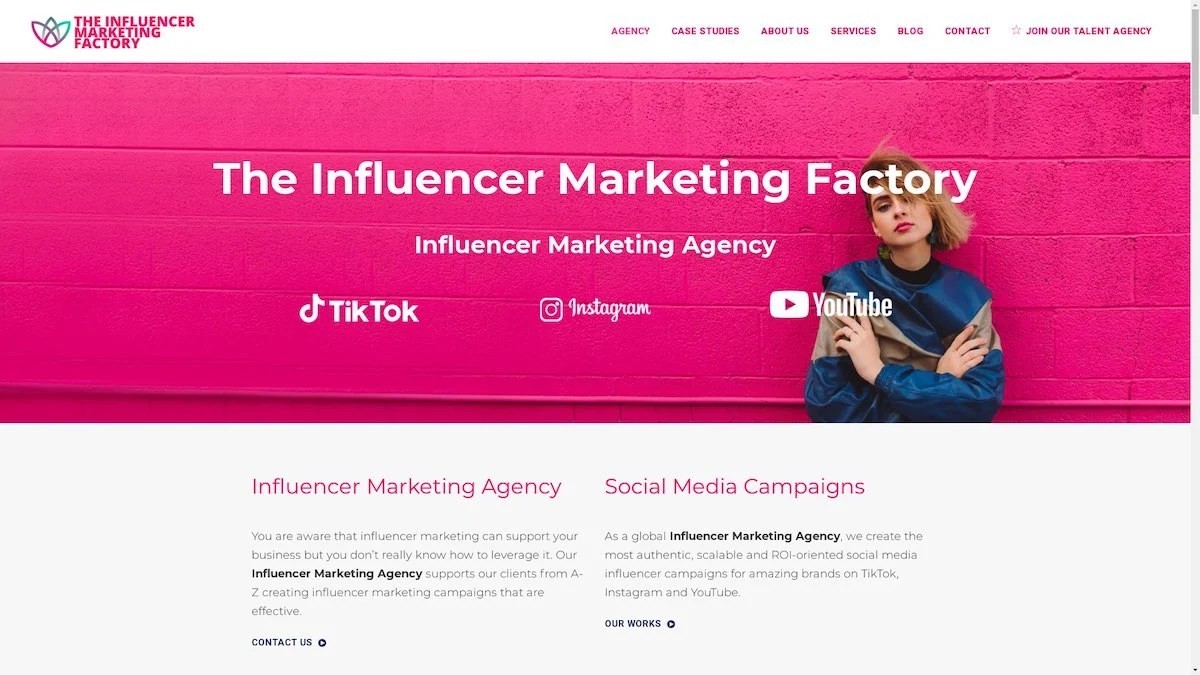
TikTok, Instagram & YouTube CampaignsA full-service agency with strong TikTok expertise, offering end-to-end campaign management from influencer discovery through performance reporting with a focus on platform-native content.Clients: Google, Snapchat, Universal Music, Bumble, YelpVisit TIMF → -
6
NeoReach
Enterprise Analytics & Influencer CampaignsAn enterprise-focused agency combining managed campaigns with a powerful self-service data platform for influencer search, audience analytics, and attribution modeling.Clients: Amazon, Airbnb, Netflix, Honda, The New York TimesVisit NeoReach → -
7

Ubiquitous
Creator-First Marketing PlatformA tech-driven platform combining self-service tools with managed campaign options, emphasizing speed and scalability for brands managing multiple influencer relationships.Clients: Lyft, Disney, Target, American Eagle, NetflixVisit Ubiquitous → -
8

Obviously
Scalable Enterprise Influencer CampaignsA tech-enabled agency built for high-volume campaigns, coordinating hundreds of creators simultaneously with end-to-end logistics, content rights management, and product seeding.Clients: Google, Ulta Beauty, Converse, AmazonVisit Obviously →